IAM Roles Anywhere with post-quantum cryptography
A step-by-step guide to setting up AWS IAM Roles Anywhere with ML-DSA (Module-Lattice Digital Signature Algorithm) certificates issued by the open-source serverless CA.
Introduction
AWS announced post-quantum cryptography support for IAM Roles Anywhere in March 2026. This guide walks through configuring IAM Roles Anywhere with fully post-quantum ML-DSA client certificates.
Create a post-quantum serverless CA
First, follow the Open-source post-quantum cryptography serverless CA guide to create an ML-DSA CA.
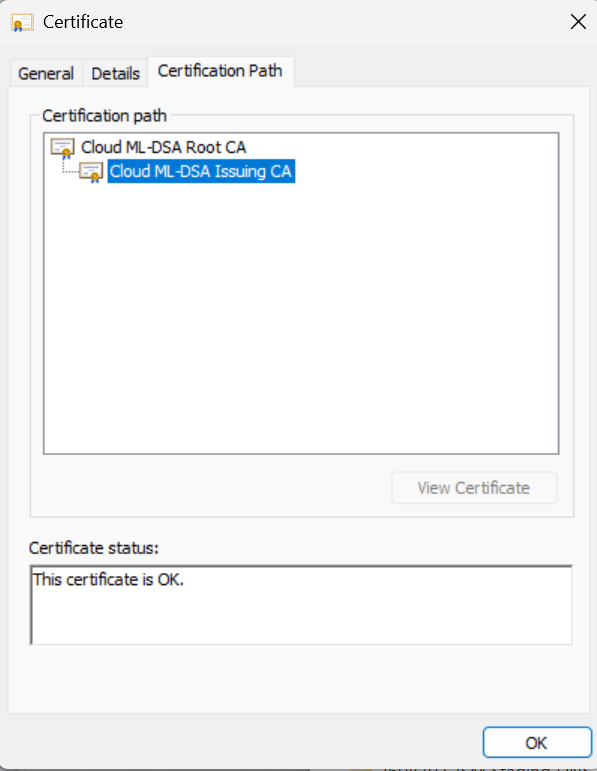
This example adds an ML-DSA CA alongside an existing ECDSA CA. After deployment, download the root and issuing ML-DSA CA certificates from your CA's public endpoint. For example:
- Root PQC CA:
https://certs.cloud-ca.com/pqc-root-ca-dev.crt - Issuing PQC CA:
https://certs.cloud-ca.com/pqc-issuing-ca-dev.crt
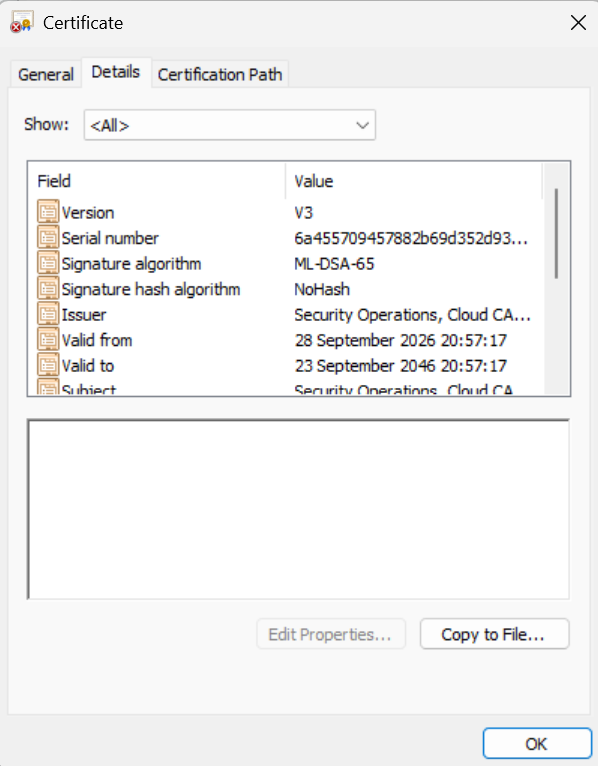
Your CA certificates will be available from the equivalent domain and URLs for your deployment.
Configure IAM Roles Anywhere
Download your CA bundle from its public endpoint, for example https://certs.cloud-ca.com/pqc-ca-bundle-dev.pem. If your CA information is private, download the bundle from the S3 bucket with external in its name.
For the role, trust policy, and optional session policy profile, follow the IAM Roles Anywhere with open-source private CA guide.
Create a trust anchor
In your Application AWS account:
- Open IAM → Roles, scroll to Roles Anywhere, and select Manage.
- Choose Create a trust anchor and select your region.
- Give the trust anchor a name, such as
pqc-ca. - Select External certificate bundle and paste in the CA bundle.
- Leave the notification defaults, add tags if desired, and create the trust anchor.
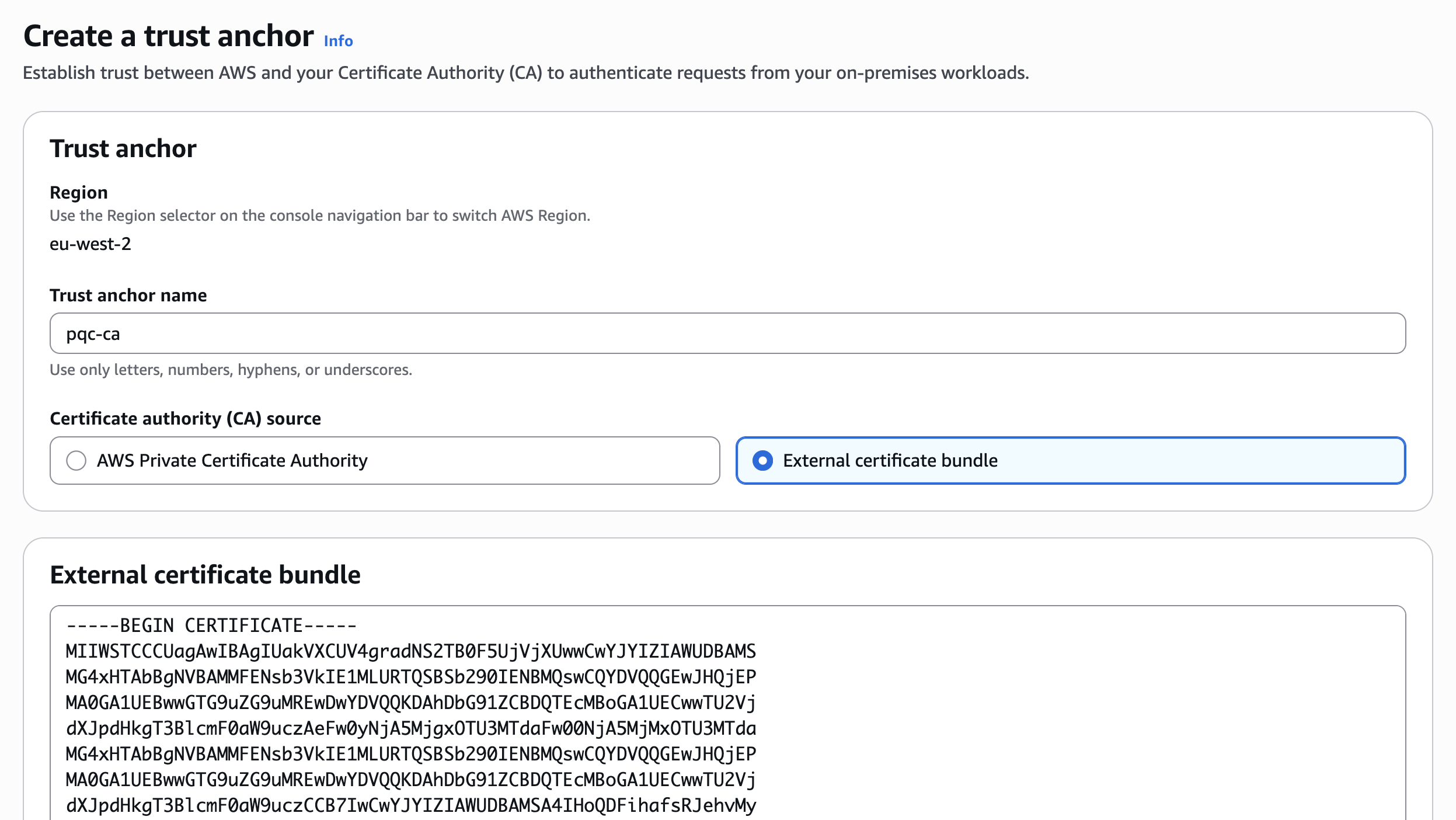
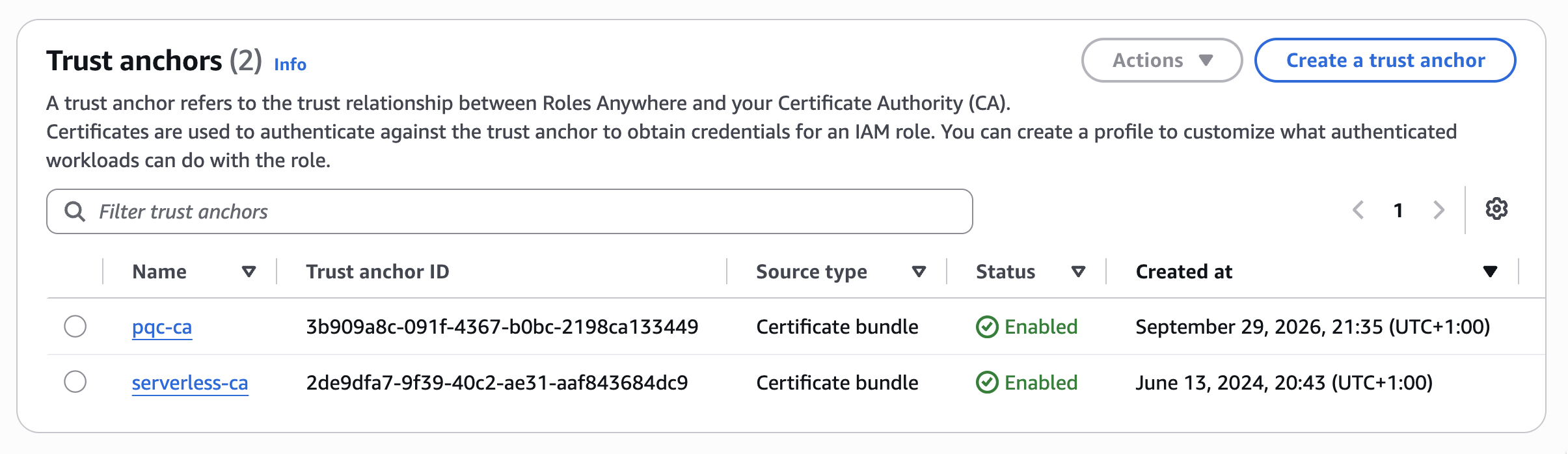
This example places the ML-DSA trust anchor in the same account and region as the existing ECDSA trust anchor.
Download the AWS IAM Roles Anywhere Credential Helper
Download version 1.8.5 or later of the AWS IAM Roles Anywhere Credential Helper for your operating system.
- Copy the binary into your home directory, or install it elsewhere and add that directory to your
PATH. - On macOS, remove the extended attribute with
xattr -c aws_signing_helper. - Make the binary executable with
chmod 755 aws_signing_helper.
Obtain an ML-DSA client certificate
Issue a fully post-quantum client certificate from your ML-DSA CA using credentials for your CA AWS account:
git clone https://github.com/serverless-ca/terraform-aws-ca.git
cd terraform-aws-ca
pip install -r utils/requirements.txt
python utils/client-cert.py --profile <your-aws-profile> --keyalgo ml-dsa-44 --project pqc
- The ML-DSA-44 key pair is generated locally.
- The CSR is signed with the local ML-DSA key and submitted to the
tls-certLambda function, which issues a certificate signed by the ML-DSA issuing CA. --project pqctargets the ML-DSA deployment when multiple CAs share the AWS account, as in the example deployment. Omit it if your account has a single CA.- The certificate, private key (PKCS8), and CA bundle are written to
~/certs.
Using OpenSSL 4, verify and inspect the certificate:
openssl verify -CAfile ~/certs/ca-bundle.pem ~/certs/client-cert.crt
openssl x509 -in ~/certs/client-cert.crt -text -noout
Convert the ML-DSA private key format
The AWS IAM Roles Anywhere Credential Helper version 1.8.5 supports only one of the three ML-DSA private key formats allowed by RFC 9881. This is not the format produced by Python Cryptography. Convert the key using OpenSSL 4:
openssl pkey -in ~/certs/client-key.pem -provparam ml-dsa.output_formats=seed-priv -out ~/certs/client-key-seedpriv.pem
openssl asn1parse -in ~/certs/client-key-seedpriv.pem -strparse 20 | cut -c1-60
The asn1parse output should show SEQUENCE, OCTET STRING l=32, and OCTET STRING l=2560.
Set up an AWS CLI profile
Edit ~/.aws/config and add a profile using your own ARNs:
[profile pqc]
    credential_process = ./aws_signing_helper credential-process --certificate certs/client-cert.crt --private-key certs/client-key-seedpriv.pem --trust-anchor-arn arn:aws:rolesanywhere:REGION:ACCOUNT_ID:trust-anchor/TRUST_ANCHOR_ID --profile-arn arn:aws:rolesanywhere:REGION:ACCOUNT_ID:profile/PROFILE_ID --role-arn arn:aws:iam::ACCOUNT_ID:role/ROLE_NAME
For example:
[profile pqc]
    credential_process = ./aws_signing_helper credential-process --certificate certs/client-cert.crt --private-key certs/client-key-seedpriv.pem --trust-anchor-arn "arn:aws:rolesanywhere:eu-west-2:992382525818:trust-anchor/3b909a8c-091f-4367-b0bc-2198ca133449" --profile-arn "arn:aws:rolesanywhere:eu-west-2:992382525818:profile/86227258-a142-433d-a4bc-6015c99b39b9" --role-arn "arn:aws:iam::992382525818:role/roles-anywhere-s3-full-access"
Replace the example ARNs with your own and save the file.
Test access
Check the AWS identity:
aws sts get-caller-identity --profile pqc
You should receive a response similar to:
{
    "UserId": "AROA6ODU3UF5DTDLJCYVE:401f1972253b0bb86bd62ac8285ad6236cc8f45a",
    "Account": "992382525818",
    "Arn": "arn:aws:sts::992382525818:assumed-role/roles-anywhere-s3-full-access/401f1972253b0bb86bd62ac8285ad6236cc8f45a"
}
Listing all S3 buckets should fail because access is restricted to a single bucket:
aws s3 ls --profile pqc
An error occurred (AccessDenied) when calling the ListBuckets operation: User: arn:aws:sts::992382525818:assumed-role/roles-anywhere-s3-full-access/401f1972253b0bb86bd62ac8285ad6236cc8f45a is not authorized to perform: s3:ListAllMyBuckets because no session policy allows the s3:ListAllMyBuckets action
Downloading an object from the designated bucket should succeed. Replace the example bucket and object with your own:
aws s3 cp s3://cloud-apps-confidential/confidential.png confidential.png --profile pqc
Optionally, set this profile as your AWS CLI default so you do not need to specify --profile.
View connection details
In IAM → Roles → Roles Anywhere, navigate to your region and select Subject Activity to view connection records. Select a record to view the certificate used to authenticate.

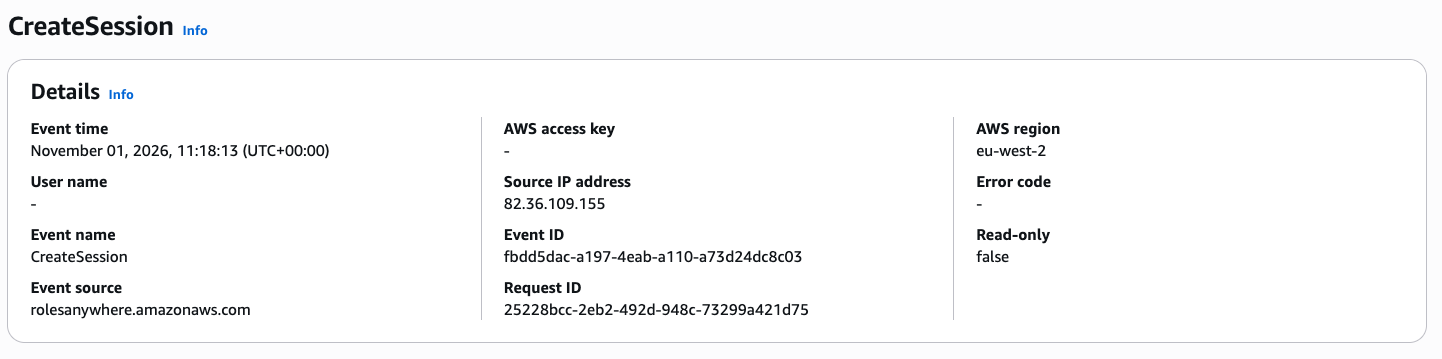
In CloudTrail, search for the CreateSession event from the rolesanywhere.amazonaws.com event source to view details about the client, role, and trust anchor.
Congratulations, you have set up and tested AWS IAM Roles Anywhere with post-quantum cryptography using the open-source private CA.